> ## Documentation Index
> Fetch the complete documentation index at: https://docs-dev-actions-triggers-prototype.mintlify.site/llms.txt
> Use this file to discover all available pages before exploring further.
> Describes how to use universal links rather than custom URL schemes to verify the legitimacy of authentication data.
# Measures Against Application Impersonation
Native applications use the [Authorization Code Flow with PKCE](/docs/get-started/authentication-and-authorization-flow/authorization-code-flow-with-pkce) authentication flow and employ a `redirect_uri` to return control to the application after login. After the URI loads in the device’s browser, the application typically opens automatically to allow the user to continue their journey.
Historically, mobile application used [custom URI schemes](https://developers.google.com/identity/protocols/oauth2/native-app#installed_app_redirect_methods) (e.g., `com.mycompany.myapp://oauth2redirect`). However, custom URI schemes pose a risk as more than one application on the device can register the same scheme. Mobile OSs do not include built-in mechanisms to ensure the application receiving the redirect is the intended one. In this scenario, malicious apps impersonate legitimate ones and receive the authorization response (including tokens) without user awareness, especially if single sign-on (SSO) is active due to the existence of a previous legitimate session, in which additional user interaction is not required. PKCE doesn't really help in these scenarios, as the malicious application can initiate the login flow and wait to receive the callback without user interaction.
Applications running on a local machine (e.g., desktop apps, CLIs) use the loopback interface for callbacks (e.g., [http://127.0.0.1:51089/callback](http://127.0.0.1:51089/callback) or [http://localhost:61024/callback](http://localhost:61024/callback)) are similarly at risk. In this case, another application on the same machine could listen on the same port to intercept the response.
We refer to both custom URI schemes and loopback URIs as Non-Verifiable Callback URIs because the authorization server cannot verify the receiving application in either scenario.
## Recommended mitigations for mobile applications
### Claimed HTTPS URIs (Universal Links / App Links)
Modern mobile OSs support **claimed HTTPS URIs** allows you to associate a website domain you control with your mobile app. Claimed HTTPS URIs are known as:
* Universal Links on iOS
* App Links on Android
Claimed HTTPS URIs ensure only your application handles the associated callback URL and protects against unauthorized access to sensitive authentication data.
Auth0 **strongly recommends** using claimed HTTPS URIs as redirect URIs for all native applications.
* For iOS: Review [Support Universal Links](https://developer.apple.com/documentation/xcode/allowing-apps-and-websites-to-link-to-your-content/#Support-universal-links).
* For Android: Review [Android App Links](https://developer.android.com/training/app-links).
## Recommended mitigations for all application
Auth0 cannot verify the legitimacy of the application receiving the authentication transaction results if:
* Your application is unable to support claimed HTTPS URIs due to required compatibility with older mobile OS versions
* Your application is a desktop or CLI application
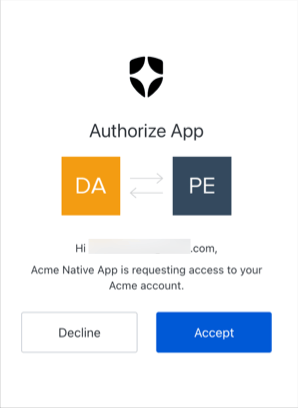
As defined in the [OAuth2 for Native Apps](https://datatracker.ietf.org/doc/html/rfc8252#section-8.6) specification, Auth0 provides a mechanism to show a confirmation prompt to the user. Users confirm the application receiving the authentication result is the one they intended to access. When a non-verifiable callback URI is in use, the user is prompted to verify the application on each authentication transaction.
The confirmation screen displays when:
1. The `redirect_uri` present in the request uses a non-verifiable URI (i.e. a custom URI scheme or a loopback URI).
2. The user has not been prompted with any other screen in the current login transaction (such as when a [consent screen](/docs/get-started/applications/third-party-applications/user-consent-and-third-party-applications) populates for third-party applications, or when MFA is required).
In these cases, the application presents the end user with a confirmation prompt.
 The confirmation prompt is not shown in legacy non-OIDC-conformant flows. To learn how you can apply increased protection for your tenants and applications, review [Adopt OIDC-Conformant Authentication](/docs/authenticate/login/oidc-conformant-authentication).
#### Prompt customization
The confirmation prompt uses your custom branding and configurations defined for existing consent screens used for third-party applications. To learn more, review the Prompts section of [Customize Universal Login Page Templates](/docs/customize/login-pages/universal-login/customize-templates).
Auth0 **strongly recommends** you do not disable this protection for production. Malicious applications on the device could request `id_tokens` and `access_tokens` without any interaction from the user or other indications that something has happened.
You can configure the confirmation prompt as a global tenant settings or at the application-level. Application-level settings take precedence over the global tenant-level setting.
**Application-level**
1. [Navigate to Auth0 Dashboard > Applications > Application Settings > Advanced > OAuth](https://manage.auth0.com/#/applications/settings).
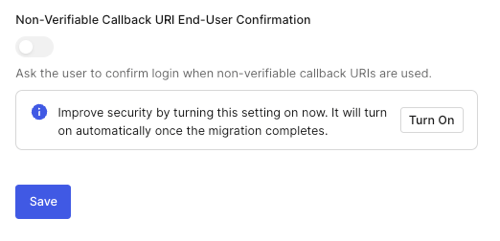
2. Scroll to the **Non-Verifiable Callback URI End-User Confirmation** setting.
3. Enable the toggle to activate the prompt or disable the toggle to deactivate the prompt.
The confirmation prompt is not shown in legacy non-OIDC-conformant flows. To learn how you can apply increased protection for your tenants and applications, review [Adopt OIDC-Conformant Authentication](/docs/authenticate/login/oidc-conformant-authentication).
#### Prompt customization
The confirmation prompt uses your custom branding and configurations defined for existing consent screens used for third-party applications. To learn more, review the Prompts section of [Customize Universal Login Page Templates](/docs/customize/login-pages/universal-login/customize-templates).
Auth0 **strongly recommends** you do not disable this protection for production. Malicious applications on the device could request `id_tokens` and `access_tokens` without any interaction from the user or other indications that something has happened.
You can configure the confirmation prompt as a global tenant settings or at the application-level. Application-level settings take precedence over the global tenant-level setting.
**Application-level**
1. [Navigate to Auth0 Dashboard > Applications > Application Settings > Advanced > OAuth](https://manage.auth0.com/#/applications/settings).
2. Scroll to the **Non-Verifiable Callback URI End-User Confirmation** setting.
3. Enable the toggle to activate the prompt or disable the toggle to deactivate the prompt.
 **Global**
1. Navigate to [Auth0 Dashboard > Settings > Advanced](https://manage.auth0.com/#/tenant/advanced).
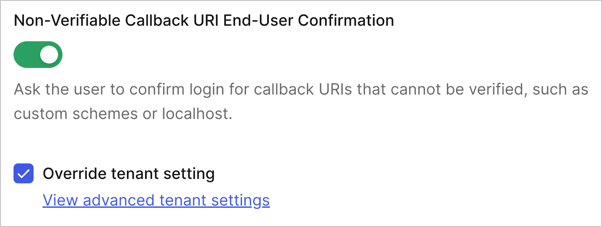
2. Find the **Non-Verifiable Callback URI End-User Confirmation** setting.
3. Enable the toggle to activate the prompt.
**Global**
1. Navigate to [Auth0 Dashboard > Settings > Advanced](https://manage.auth0.com/#/tenant/advanced).
2. Find the **Non-Verifiable Callback URI End-User Confirmation** setting.
3. Enable the toggle to activate the prompt.