> ## Documentation Index
> Fetch the complete documentation index at: https://docs-dev-actions-triggers-prototype.mintlify.site/llms.txt
> Use this file to discover all available pages before exploring further.
# Auth0.swift
> Auth0.swiftをインストールして開始する方法
Auth0をアプリにシームレスに統合できる、iOS・macOS・tvOS・watchOS向けのSwift SDKです。ログインとログアウトを追加し、資格情報を安全に保管して、ユーザー情報にアクセスすることができます。
**参照** :[**GitHubリポジトリ** ](https://github.com/auth0/Auth0.swift)
**v1からの移行:** [**移行ガイド** ](https://github.com/auth0/Auth0.swift/blob/master/V2_MIGRATION_GUIDE.md)を参照してください
## ドキュメント
* [Quickstart](https://auth0.com/docs/quickstart/native/ios-swift/interactive):Auth0.swiftをゼロからiOS/macOSアプリに統合する方法を説明します。
* [Sample App](https://github.com/auth0-samples/auth0-ios-swift-sample/tree/master/Sample-01):動作する完全なiOS/macOSアプリを試用できます。
* [例](https://github.com/auth0/Auth0.swift/blob/master/EXAMPLES.md):ほとんどの機能の使用方法を説明します。
* [APIのドキュメント](https://auth0.github.io/Auth0.swift/documentation/auth0):コードのコメントから自動生成されたドキュメントには、利用可能なすべての機能が説明されています。
* [Web Auth](https://auth0.github.io/Auth0.swift/documentation/auth0/webauth)
* [資格情報マネージャー](https://auth0.github.io/Auth0.swift/documentation/auth0/credentialsmanager)
* [Authentication APIクライアント](https://auth0.github.io/Auth0.swift/documentation/auth0/authentication)
* [Management APIクライアント(ユーザー)](https://auth0.github.io/Auth0.swift/documentation/auth0/users)
* [よくある質問](https://github.com/auth0/Auth0.swift/blob/master/FAQ.md):Auth0.swiftに関するよくある質問にお答えします。
* [Auth0ドキュメント:](https://auth0.com/docs):ドキュメントサイトを探索して、Auth0について詳しく学ぶことができます。
## 使用を開始する
### 要件
* iOS 13.0+ / macOS 11.0+ / tvOS 13.0+ / watchOS 7.0+
* Xcode 14.x
* Swift 5.7+
「[サポートポリシー](https://github.com/auth0/Auth0.swift/tree/master#support-policy)」を参照して、どのような場合にXcode・Swift・プラットフォームのバージョンの削除が**破壊的変更** とみなされないかを確認してください。
### インストール
#### Swift Package Manager
Xcodeで以下のメニュー項目を開きます:
**[File(ファイル)] > [Add Packages...(パッケージの追加)]**
**[Search or Enter Package URL(パッケージURLを検索または入力)]** 検索ボックスに次のURLを入力します。
```lines theme={null}
https://github.com/auth0/Auth0.swift
```
次に、依存ルールを選択して **[Add Package(パッケージを追加)]** を押します。
#### Cocoapods
以下のラインを`Podfile`に追加します。
```lines theme={null}
pod 'Auth0', '~> 2.0'
```
それから`pod install`を実行します。
#### Carthage
以下のラインを`Cartfile`に追加します。
```lines theme={null}
github "auth0/Auth0.swift" ~> 2.0
```
それから`carthage bootstrap --use-xcframeworks`を実行します。
### SDKを構成する
[Auth0 Dashboard](https://manage.auth0.com/#/applications/)に移動し、新しい **[Native(ネイティブ)]** アプリケーションを作成します。
Auth0.swiftはAuth0と通信するためにAuth0アプリケーションの **[Client ID(クライアントID)]** と **[Domain(ドメイン)]** を必要とします。これらの詳細はAuth0アプリケーションの設定ページで確認できます[カスタムドメイン](/docs/ja-jp/customize/custom-domains)を使用している場合は、設定ページの値ではなく、カスタムドメインの値を使用してください。
#### クライアントIDとドメインをplistで設定する
`Auth0.plist`という名前の`plist`ファイルを、以下の内容でアプリバンドル内に作成します。
```xml lines theme={null}
ClientId
{yourAuth0ClientId}
Domain
{yourAuth0Domain}
```
#### クライアントIDとドメインをプログラムで設定する
##### Web Authの場合
```swift lines theme={null}
Auth0
.webAuth(clientId: "{yourAuth0ClientID}", domain: "{yourAuth0Domain}")
// ...
```
##### Authentication APIクライアントの場合
```swift lines theme={null}
Auth0
.authentication(clientId: "{yourAuth0ClientID}", domain: "{yourAuth0Domain}")
// ...
```
##### Management APIクライアント(ユーザー)の場合
```swift lines theme={null}
Auth0
.users(token: credentials.accessToken, domain: "{yourAuth0Domain}")
// ...
```
### Web Authを設定する(iOS/macOS)
#### コールバックURLとログアウトURLを設定する
コールバックURLとログアウトURLは、Auth0がアプリケーションにリダイレクトするために呼び出すURLです。Auth0は、ユーザー認証後にコールバックURLを呼び出し、セッションCookieを削除した後にログアウトURLを呼び出します。
コールバックURLとログアウトURLは操作できるため、Auth0アプリケーションの設定ページにある **[Allowed Callback URLs(許可されているコールバックURL)]** と **[Allowed Logout URLs(許可されているログアウトURL)]** のフィールドに使用するURLを追加する必要があります。これにより、Auth0はこれらのURLを有効なものと認識できるようになります。コールバックURLとログアウトURLを設定しないと、ユーザーはアプリケーションへのログインやログアウトが行えなくなり、エラーが発生します。
[Auth0アプリケーション](https://manage.auth0.com/#/applications/)の設定ページを開き、アプリケーションのプラットフォームに応じて、対応するURLを **[Allowed Callback URLs(許可されているコールバックURL)]** と **[Allowed Logout URLs(許可されているログアウトURL)]** に追加します。[カスタムドメイン](/docs/ja-jp/customize/custom-domains)を使用している場合は、設定ページの値ではなく、`{yourAuth0Domain}`をカスタムドメインの値に置き換えてください。
##### iOS
```json lines theme={null}
{yourBundleIdentifier}://{yourAuth0Domain}/ios/{yourBundleIdentifier}/callback
```
##### macOS
```json lines theme={null}
{yourBundleIdentifier}://{yourAuth0Domain}/macos/{yourBundleIdentifier}/callback
```
たとえば、iOSのバンドル識別子が`com.example.MyApp`でAuth0ドメインが`example.us.auth0.com`の場合には、次の値になります。
```lines theme={null}
com.example.MyApp://example.us.auth0.com/ios/com.example.MyApp/callback
```
[**トークンエンドポイント認証方法** ](/docs/ja-jp/get-started/applications/confidential-and-public-applications/view-application-type)の設定が[`None`(なし)]に設定されていることを確認してください。
#### カスタムURLスキームを設定する
Xcodeで、アプリターゲット設定の\*\*[Info(情報)]\*\* タブを開きます。**[URL Types(URLタイプ)]** セクションで\*\*+**ボタンをクリックして、新しいエントリを追加します。そこで、** [Identifier(識別子)]**フィールドに`auth0`と入力し、** [URL Schemes(URLスキーム)]\*\*フィールドに`$(PRODUCT_BUNDLE_IDENTIFIER)`と入力します。
これにより、バンドル識別子がカスタムURLスキームとして登録され、コールバックURLとログアウトURLがアプリに到達できるようになります。
### Web Authのログイン(iOS/macOS)
ログインページを提示したいファイルに`Auth0`モジュールをインポートします。
```swift lines theme={null}
import Auth0
```
それから **[Login(ログイン)]** ボタンのアクションで[ユニバーサルログイン](/docs/ja-jp/authenticate/login/auth0-universal-login)ページを提示します。
```swift lines theme={null}
Auth0
.webAuth()
.start { result in
switch result {
case .success(let credentials):
print("Obtained credentials: \(credentials)")
case .failure(let error):
print("Failed with: \(error)")
}
}
```
#### async/awaitを使用する
```swift lines theme={null}
do {
let credentials = try await Auth0.webAuth().start()
print("Obtained credentials: \(credentials)")
} catch {
print("Failed with: \(error)")
}
```
#### Combineを使用する
```swift lines theme={null}
Auth0
.webAuth()
.start()
.sink(receiveCompletion: { completion in
if case .failure(let error) = completion {
print("Failed with: \(error)")
}
}, receiveValue: { credentials in
print("Obtained credentials: \(credentials)")
})
.store(in: &cancellables)
```
### Web Authのログアウト(iOS/macOS)
ユーザーをログアウトさせるには、ユニバーサルログインセッションのCookieをクリアし、アプリケーションからユーザーの資格情報を削除します。
**[Logout(ログアウト)]** ボタンのアクションで`clearSession()`メソッドを呼び出します。セッションCookieがクリアされたら、[ユーザーの資格情報を削除します](https://github.com/auth0/Auth0.swift/blob/master/EXAMPLES.md#clear-stored-credentials)。
```swift lines theme={null}
Auth0
.webAuth()
.clearSession { result in
switch result {
case .success:
print("Session cookie cleared")
// Delete credentials
case .failure(let error):
print("Failed with: \(error)")
}
}
```
#### async/awaitを使用する
```swift lines theme={null}
do {
try await Auth0.webAuth().clearSession()
print("Session cookie cleared")
// Delete credentials
} catch {
print("Failed with: \(error)")
}
```
#### Combineを使用する
```swift lines theme={null}
Auth0
.webAuth()
.clearSession()
.sink(receiveCompletion: { completion in
switch completion {
case .finished:
print("Session cookie cleared")
// Delete credentials
case .failure(let error):
print("Failed with: \(error)")
}
}, receiveValue: {})
.store(in: &cancellables)
```
### SSOアラートボックス(iOS/macOS)
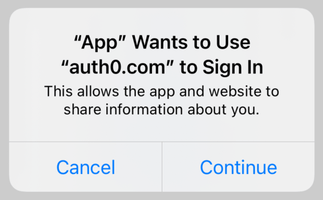 Web Authを使用しているときにデフォルトで表示されるアラートボックスの詳細については、[FAQ](https://github.com/auth0/Auth0.swift/blob/master/FAQ.md)を参照してください。
詳しくは、[iOSでシームレスなモバイルSSO(シングルサインオン)エクスペリエンスを作成する方法](https://developer.okta.com/blog/2022/01/13/mobile-sso)も参照してください。
## 次の手順
ほとんどの機能については、[例](https://github.com/auth0/Auth0.swift/blob/master/EXAMPLES.md)で説明されています。
* [資格情報を保存する](https://github.com/auth0/Auth0.swift/blob/master/EXAMPLES.md#store-credentials):ユーザーの資格情報をKeychainに安全に保存します。
* [保存されている資格情報を確認する](https://github.com/auth0/Auth0.swift/blob/master/EXAMPLES.md#check-for-stored-credentials):アプリの起動時に、ユーザーがすでにログインしているかどうかを確認します。
* [保存されている資格情報を取得する](https://github.com/auth0/Auth0.swift/blob/master/EXAMPLES.md#retrieve-stored-credentials):Keychainからユーザーの資格情報を取得し、期限切れの場合は自動的に更新します。
* [保存されている資格情報を消去する](https://github.com/auth0/Auth0.swift/blob/master/EXAMPLES.md#clear-stored-credentials):ユーザーの資格情報を削除して、ログアウトプロセスを完了します。
* [ユーザー情報を取得する](https://github.com/auth0/Auth0.swift/blob/master/EXAMPLES.md#retrieve-user-information):`/userinfo`エンドポイントから最新のユーザー情報を取得します。
Web Authを使用しているときにデフォルトで表示されるアラートボックスの詳細については、[FAQ](https://github.com/auth0/Auth0.swift/blob/master/FAQ.md)を参照してください。
詳しくは、[iOSでシームレスなモバイルSSO(シングルサインオン)エクスペリエンスを作成する方法](https://developer.okta.com/blog/2022/01/13/mobile-sso)も参照してください。
## 次の手順
ほとんどの機能については、[例](https://github.com/auth0/Auth0.swift/blob/master/EXAMPLES.md)で説明されています。
* [資格情報を保存する](https://github.com/auth0/Auth0.swift/blob/master/EXAMPLES.md#store-credentials):ユーザーの資格情報をKeychainに安全に保存します。
* [保存されている資格情報を確認する](https://github.com/auth0/Auth0.swift/blob/master/EXAMPLES.md#check-for-stored-credentials):アプリの起動時に、ユーザーがすでにログインしているかどうかを確認します。
* [保存されている資格情報を取得する](https://github.com/auth0/Auth0.swift/blob/master/EXAMPLES.md#retrieve-stored-credentials):Keychainからユーザーの資格情報を取得し、期限切れの場合は自動的に更新します。
* [保存されている資格情報を消去する](https://github.com/auth0/Auth0.swift/blob/master/EXAMPLES.md#clear-stored-credentials):ユーザーの資格情報を削除して、ログアウトプロセスを完了します。
* [ユーザー情報を取得する](https://github.com/auth0/Auth0.swift/blob/master/EXAMPLES.md#retrieve-user-information):`/userinfo`エンドポイントから最新のユーザー情報を取得します。