> ## Documentation Index
> Fetch the complete documentation index at: https://docs-dev-actions-triggers-prototype.mintlify.site/llms.txt
> Use this file to discover all available pages before exploring further.
> ACULの構成方法について学ぶ
# ACULの構成
Auth0 DashboardやManagement API、Infrastructure-as-Code(IaC)ツールを使用して、ACULを構成できます。
ACULを構成するには、カスタム構成ファイルとアセットがパブリックCDNでホストされていることを確認してください。
## Auth0 Dashboard
Dashboardを使用して、ACULで画面をカスタマイズできます。
A. [[Dashboard]>[ブランディング]>[ユニバーサルログイン]](https://manage.auth0.com/dashboard/#/universal-login/customizations-new)に移動します
1. \*\*[認証画面をカスタマイズ]\*\*を選択します。
2. カスタマイズするscreenを選択します。
3. \*\*[設定]>[レンダリングモード]**から**[詳細モード]\*\*を選択します。
4. (任意)\*\*[カスタムページテンプレートを使用する]\*\*を選択します。
5. (任意)\*\*[詳細モードフィルター]\*\*を選択します。
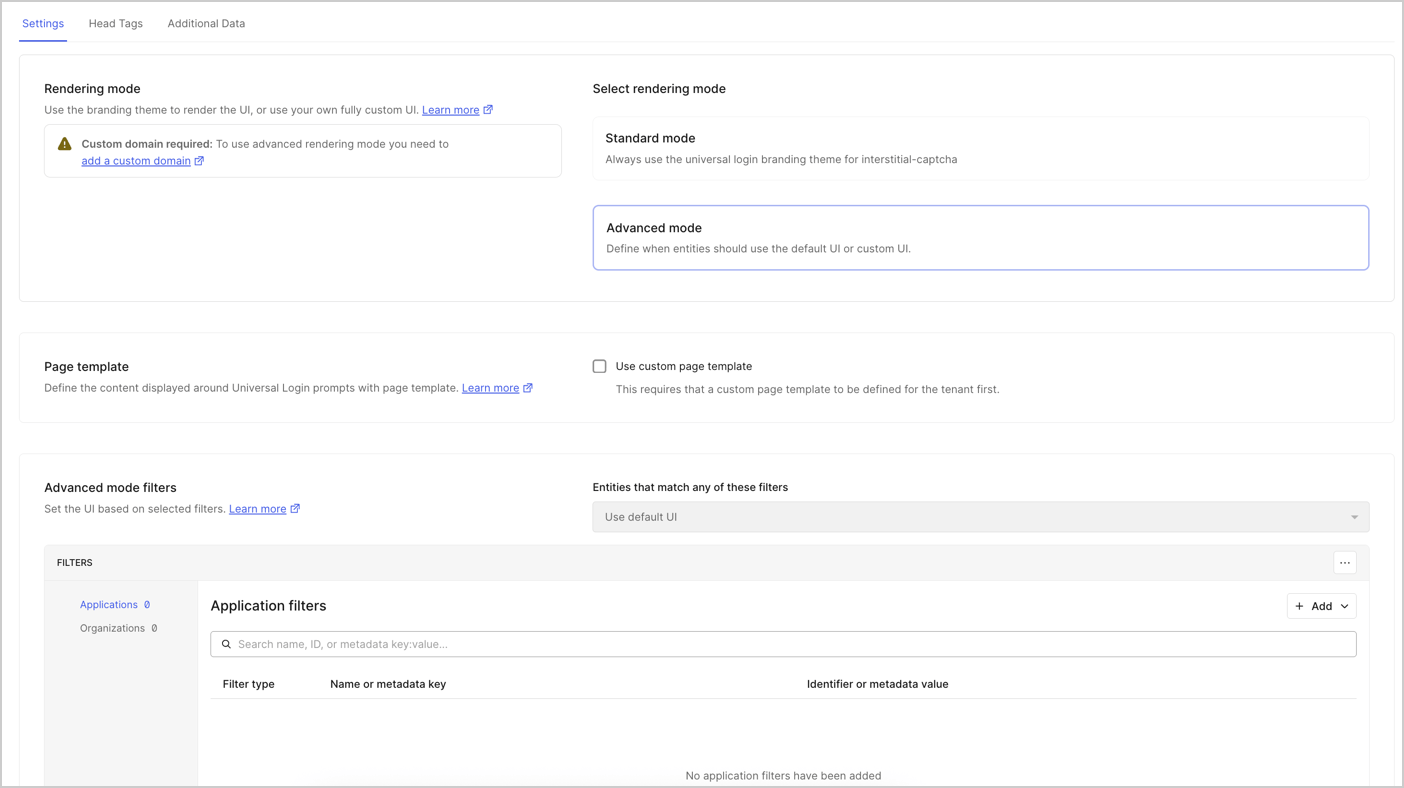 6. \*\*[headタグ]\*\*を選択して、独自のHTML `Head Tags`を追加します。
7. (任意)\*\*[追加データ]\*\*を選択して、ブラウザに送信する追加データを選択します。
B. \*\*[保存して公開]\*\*を選択します
**ACULレンダリング構成オブジェクトを使用する**
ACULレンダリング構成は単一のJSONオブジェクトで、ACULを有効化し、画面ごとに利用可能なすべてのプロパティ(特定のアセット、コンテキストデータ、適用可能な条件付きロジック)を一覧表示するために使用されます。ACULレンダリング構成オブジェクトは、IaCツールとAuth0 Management APIで使用できます。
詳しくは、「\[`/v2/prompts/patch-rendering`]」([https://auth0.com/docs/api/management/v2/prompts/patch-rendering)エンドポイントをご覧ください。](https://auth0.com/docs/api/management/v2/prompts/patch-rendering\)エンドポイントをご覧ください。)
## ACULレンダリング構成オブジェクト
ACULレンダリング構成は単一のJSONオブジェクトで、ACULを有効化し、画面ごとに利用可能なすべてのプロパティ(特定のアセット、コンテキストデータ、適用可能な条件付きロジック)を一覧表示するために使用されます。ACULレンダリング構成オブジェクトは、IaCツールとAuth0 Management APIで使用できます。
詳しくは、「\[`/v2/prompts/patch-rendering`]」([https://auth0.com/docs/api/management/v2/prompts/patch-rendering)エンドポイントをご覧ください。](https://auth0.com/docs/api/management/v2/prompts/patch-rendering\)エンドポイントをご覧ください。)
## Infrastructure-as-Code(IaC)
次のようなIaCツールを使用してACULを構成します。
* **Auth0 CLIの**[`auth0 acul`](https://auth0.github.io/auth0-cli/auth0_acul.html) コマンド。
* **Auth0 Terraform Providerの**[`auth0_prompt_screen_renderer`](https://registry.terraform.io/providers/auth0/auth0/latest/docs/resources/prompt_screen_renderer)リソース。
* **Auth0 Deploy CLIの**[`prompts`](https://github.com/auth0/auth0-deploy-cli/blob/master/docs/resource-specific-documentation.md#prompts)リソース。
## Auth0 Management API
ACUL Management APIエンドポイントを使用して、ユニバーサルログイン画面を個別に構成したり、1回のAPI呼び出しで複数の画面を更新したりできます。リクエストには[Management APIアクセストークン](/docs/ja-jp/secure/tokens/access-tokens/management-api-access-tokens)が必要です。
**個別の画面構成**
* [`GET /v2/prompts/{prompt}/screen/{screen}/rendering`エンドポイント](/docs/api/management/v2/prompts/get-rendering)を使用すると、1つの画面の構成を取得できます。
* [`PATCH /v2/prompts/{prompt}/screen/{screen}/rendering`エンドポイント](/docs/api/management/v2/prompts/patch-rendering)を使用すると、1つの画面でACULを構成できます。
**一括の画面構成**
* [`GET /v2/prompts/rendering`エンドポイント](/docs/api/management/v2/prompts/get-all-rendering)を使用すると、すべての画面の構成を取得できます。
* [`PATCH /v2/prompts/rendering`エンドポイント](/docs/api/management/v2/prompts/patch-bulk-rendering)を使用すると、画面を一括で更新できます。
6. \*\*[headタグ]\*\*を選択して、独自のHTML `Head Tags`を追加します。
7. (任意)\*\*[追加データ]\*\*を選択して、ブラウザに送信する追加データを選択します。
B. \*\*[保存して公開]\*\*を選択します
**ACULレンダリング構成オブジェクトを使用する**
ACULレンダリング構成は単一のJSONオブジェクトで、ACULを有効化し、画面ごとに利用可能なすべてのプロパティ(特定のアセット、コンテキストデータ、適用可能な条件付きロジック)を一覧表示するために使用されます。ACULレンダリング構成オブジェクトは、IaCツールとAuth0 Management APIで使用できます。
詳しくは、「\[`/v2/prompts/patch-rendering`]」([https://auth0.com/docs/api/management/v2/prompts/patch-rendering)エンドポイントをご覧ください。](https://auth0.com/docs/api/management/v2/prompts/patch-rendering\)エンドポイントをご覧ください。)
## ACULレンダリング構成オブジェクト
ACULレンダリング構成は単一のJSONオブジェクトで、ACULを有効化し、画面ごとに利用可能なすべてのプロパティ(特定のアセット、コンテキストデータ、適用可能な条件付きロジック)を一覧表示するために使用されます。ACULレンダリング構成オブジェクトは、IaCツールとAuth0 Management APIで使用できます。
詳しくは、「\[`/v2/prompts/patch-rendering`]」([https://auth0.com/docs/api/management/v2/prompts/patch-rendering)エンドポイントをご覧ください。](https://auth0.com/docs/api/management/v2/prompts/patch-rendering\)エンドポイントをご覧ください。)
## Infrastructure-as-Code(IaC)
次のようなIaCツールを使用してACULを構成します。
* **Auth0 CLIの**[`auth0 acul`](https://auth0.github.io/auth0-cli/auth0_acul.html) コマンド。
* **Auth0 Terraform Providerの**[`auth0_prompt_screen_renderer`](https://registry.terraform.io/providers/auth0/auth0/latest/docs/resources/prompt_screen_renderer)リソース。
* **Auth0 Deploy CLIの**[`prompts`](https://github.com/auth0/auth0-deploy-cli/blob/master/docs/resource-specific-documentation.md#prompts)リソース。
## Auth0 Management API
ACUL Management APIエンドポイントを使用して、ユニバーサルログイン画面を個別に構成したり、1回のAPI呼び出しで複数の画面を更新したりできます。リクエストには[Management APIアクセストークン](/docs/ja-jp/secure/tokens/access-tokens/management-api-access-tokens)が必要です。
**個別の画面構成**
* [`GET /v2/prompts/{prompt}/screen/{screen}/rendering`エンドポイント](/docs/api/management/v2/prompts/get-rendering)を使用すると、1つの画面の構成を取得できます。
* [`PATCH /v2/prompts/{prompt}/screen/{screen}/rendering`エンドポイント](/docs/api/management/v2/prompts/patch-rendering)を使用すると、1つの画面でACULを構成できます。
**一括の画面構成**
* [`GET /v2/prompts/rendering`エンドポイント](/docs/api/management/v2/prompts/get-all-rendering)を使用すると、すべての画面の構成を取得できます。
* [`PATCH /v2/prompts/rendering`エンドポイント](/docs/api/management/v2/prompts/patch-bulk-rendering)を使用すると、画面を一括で更新できます。