> ## Documentation Index
> Fetch the complete documentation index at: https://docs-dev-actions-triggers-prototype.mintlify.site/llms.txt
> Use this file to discover all available pages before exploring further.
> Describes how to use Auth0 Teams to centrally manage Tenant Membership.
# Tenant Member Management
Tenant Member Management allows Team Owners to manage tenant access and [roles](/docs/get-started/manage-dashboard-access/feature-access-by-role) for Team members directly in the Teams dashboard.
## Enable Tenant Member Management
Tenant Member Management is enabled by default for all Self-service customers and most Public Cloud Enterprise customers.
To enable Tenant Member Management in your Teams dashboard:
1. Go to **Settings**.
2. Locate the **Tenant Member Management** section.
3. Enable the **Manage tenant members** checkbox.
4. Select **Save**.
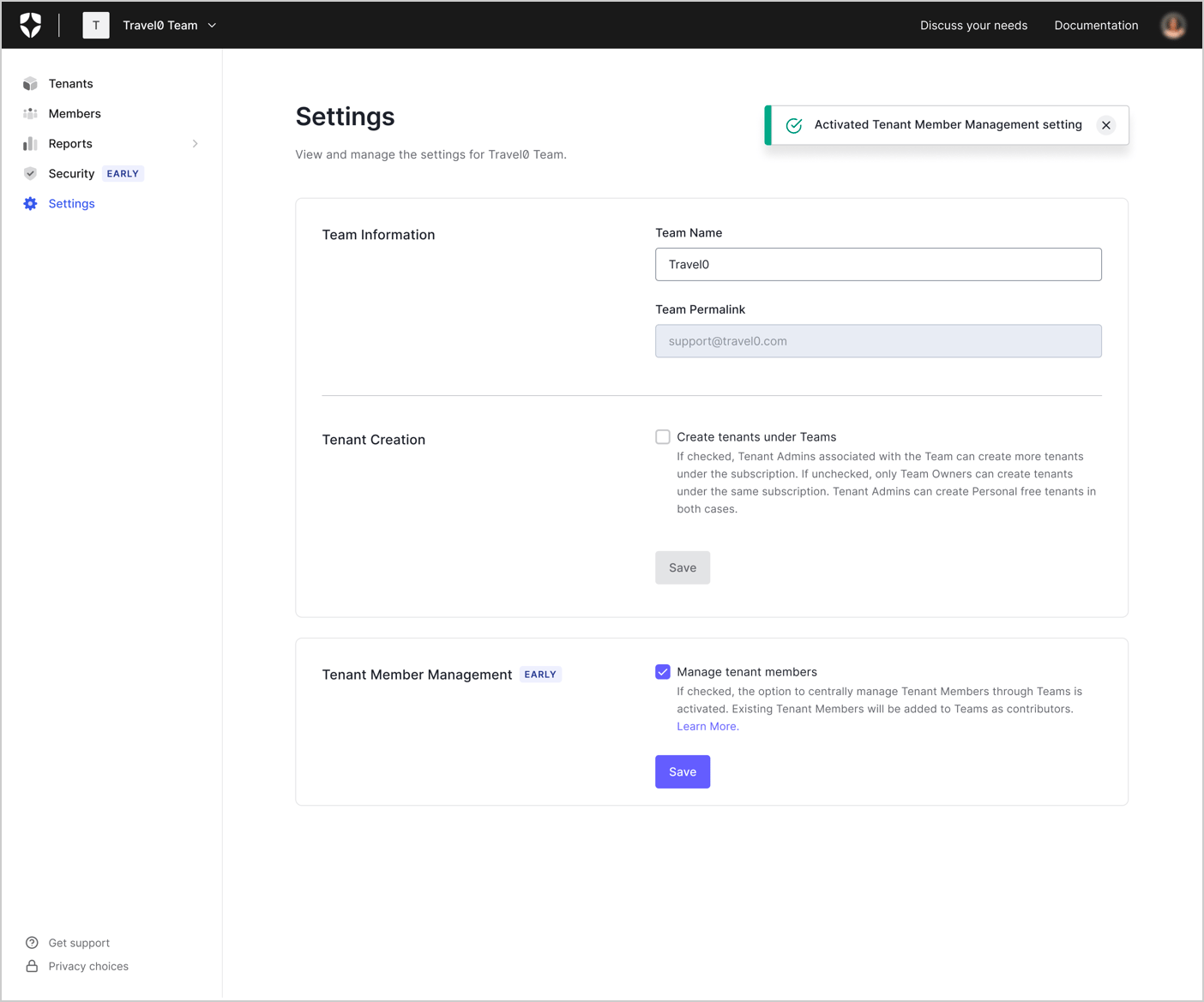 After you enable Tenant Member Management, a background process replicates all current tenant members as Team members and grants them the **Contributor** role. If a user already has a Team member account, the role with greater privileges is maintained.
## Add tenant access for a Team member
To add tenant access for a Team member through the Teams dashboard:
1. Go to **Members**.
2. Select the Team member to open their **Member details** page.
3. Select **Add Tenant Access**.
4. Type the tenant name into the search window or select a tenant from the dropdown menu. You can select up to five tenants.
Specific Apps option is not presented if more than one tenant is selected. Select individual Tenant to assign Editor -Specific Apps role.
5. Select the desired role(s) you want to assign to the Team member for all selected tenants.
6. Select **Assign**.
## Edit tenant access for a Team member
To edit tenant access for a Team member through the Teams dashboard:
1. Go to **Members**.
2. Select the Team member to open their **Member details** page, or select **Manage Tenant Access** from the ellipsis menu (**...**) next to their name.
3. Locate the desired tenant and select **Edit Roles** from the ellipsis menu (**...**).
4. Select **Assign**.
If a Team member is currently logged in and you edit their role, Auth0 forcibly logs them out and terminates their session. This may result in loss of unsaved work.
## Remove tenant access for a Team member
To remove tenant access for a Team member through the Teams dashboard:
1. Go to **Members**.
2. Select the Team member to open their **Member details** page.
3. Locate the desired tenant and select **Remove Access** from the ellipsis menu (**...**).
4. Select **Assign**.
If you want to remove a Team member from all tenants associated with the Team, [remove them from the Team](/docs/get-started/auth0-teams/team-member-management).
After you enable Tenant Member Management, a background process replicates all current tenant members as Team members and grants them the **Contributor** role. If a user already has a Team member account, the role with greater privileges is maintained.
## Add tenant access for a Team member
To add tenant access for a Team member through the Teams dashboard:
1. Go to **Members**.
2. Select the Team member to open their **Member details** page.
3. Select **Add Tenant Access**.
4. Type the tenant name into the search window or select a tenant from the dropdown menu. You can select up to five tenants.
Specific Apps option is not presented if more than one tenant is selected. Select individual Tenant to assign Editor -Specific Apps role.
5. Select the desired role(s) you want to assign to the Team member for all selected tenants.
6. Select **Assign**.
## Edit tenant access for a Team member
To edit tenant access for a Team member through the Teams dashboard:
1. Go to **Members**.
2. Select the Team member to open their **Member details** page, or select **Manage Tenant Access** from the ellipsis menu (**...**) next to their name.
3. Locate the desired tenant and select **Edit Roles** from the ellipsis menu (**...**).
4. Select **Assign**.
If a Team member is currently logged in and you edit their role, Auth0 forcibly logs them out and terminates their session. This may result in loss of unsaved work.
## Remove tenant access for a Team member
To remove tenant access for a Team member through the Teams dashboard:
1. Go to **Members**.
2. Select the Team member to open their **Member details** page.
3. Locate the desired tenant and select **Remove Access** from the ellipsis menu (**...**).
4. Select **Assign**.
If you want to remove a Team member from all tenants associated with the Team, [remove them from the Team](/docs/get-started/auth0-teams/team-member-management).