> ## Documentation Index
> Fetch the complete documentation index at: https://docs-dev-actions-triggers-prototype.mintlify.site/llms.txt
> Use this file to discover all available pages before exploring further.
> Auth0 Configuration for the SPA + API architecture scenario
# Auth0 Configuration (SPAs + API)
In this section we will review all the configurations we need to apply at the [Auth0 Dashboard](https://manage.auth0.com/#).
## Create the API
Navigate to the [APIs section](https://manage.auth0.com/#/apis) of the dashboard, and click the **Create API** button.
You will be asked to supply the following details for your API:
* **Name**: a friendly name for the API. Does not affect any functionality.
* **Identifier**: a unique identifier for the API. We recommend using a URL but note that this doesn't have to be a publicly available URL, Auth0 will not call your API at all. This value cannot be modified afterwards.
* **Signing Algorithm**: the algorithm to sign the tokens with. The available values are `HS256` and `RS256`. When selecting RS256 the token will be signed with the tenant's private key. To learn more about signing algorithms, see [Signing Algorithms](/docs/get-started/applications/signing-algorithms).
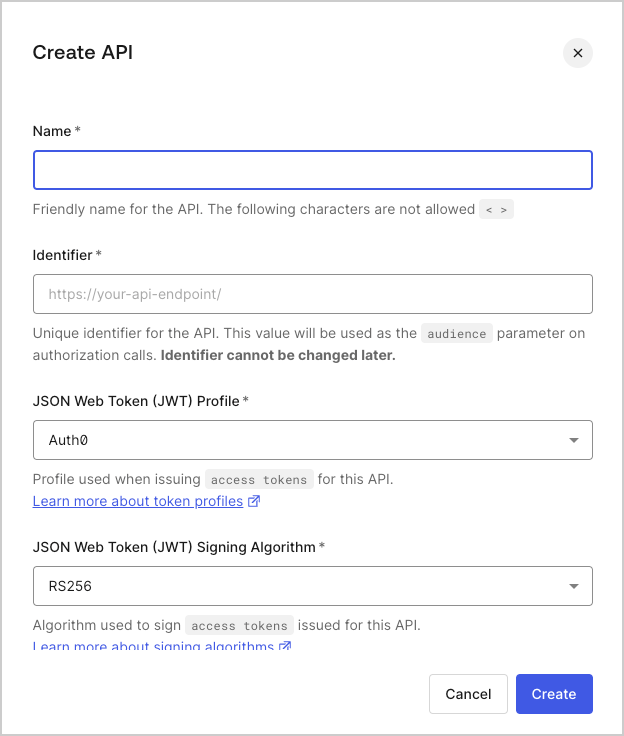 Fill in the required information and click the **Create** button.
## Configure the Scopes
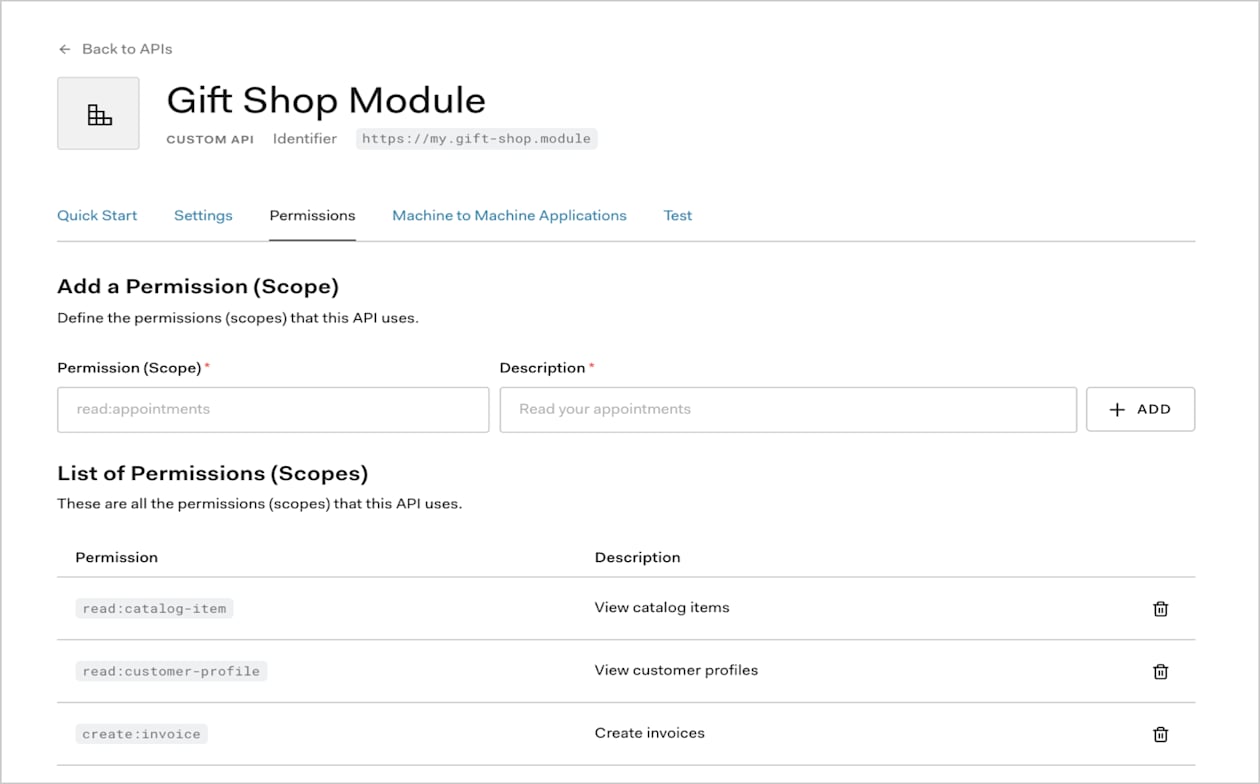
Once the application has been created you will need to configure the Scopes which applications can request during authorization.
In the settings for your API, go to the Permissions tab. In this section you can add the scopes for our business case: `read:timesheets`, `create:timesheets`, `delete:timesheets`, and `approve:timesheets`.
Fill in the required information and click the **Create** button.
## Configure the Scopes
Once the application has been created you will need to configure the Scopes which applications can request during authorization.
In the settings for your API, go to the Permissions tab. In this section you can add the scopes for our business case: `read:timesheets`, `create:timesheets`, `delete:timesheets`, and `approve:timesheets`.
 ## Create the Application
There are four application types in Auth0:
* **Native App** (used by mobile or desktop apps),
* **Single-Page Web App**,
* **Regular Web App** and
* **Machine to Machine App** (used by CLIs, Daemons, or services running on your backend).
For this scenario we want to create a new Application for our SPA, hence we will use Single-Page Application as the application type.
To create a new Application, navigate to the [dashboard](https://manage.auth0.com/#) and click on the [Applications](https://manage.auth0.com/#/applications) menu option on the left. Click the **+ Create Application** button.
Set a name for your Application (we will use `Timesheets SPA`) and select `Single-Page Web App` as the type.
Click **Create**.
That's it for now. When we are done with the SPA implementation we will revisit the dashboard and this Application's settings to make some changes in its configuration.
## Configure the Authorization Extension
You will need to ensure that the Authorization Extension is installed for your tenant. You can refer to the [Authorization Extension documentation](/docs/customize/extensions/authorization-extension) for details on how to do this.
### Define Permissions
You will now define the required Permissions, according to the scopes you have already defined: `read:timesheets`, `create:timesheets`, `delete:timesheets`, and `approve:timesheets`.
In the Authorization Extension, click the **Permissions** tab, and then click on the **Create Permission** button.
In the dialog, capture the details for each permission.
Ensure that the name of the permission is exactly the same as the corresponding scope:
## Create the Application
There are four application types in Auth0:
* **Native App** (used by mobile or desktop apps),
* **Single-Page Web App**,
* **Regular Web App** and
* **Machine to Machine App** (used by CLIs, Daemons, or services running on your backend).
For this scenario we want to create a new Application for our SPA, hence we will use Single-Page Application as the application type.
To create a new Application, navigate to the [dashboard](https://manage.auth0.com/#) and click on the [Applications](https://manage.auth0.com/#/applications) menu option on the left. Click the **+ Create Application** button.
Set a name for your Application (we will use `Timesheets SPA`) and select `Single-Page Web App` as the type.
Click **Create**.
That's it for now. When we are done with the SPA implementation we will revisit the dashboard and this Application's settings to make some changes in its configuration.
## Configure the Authorization Extension
You will need to ensure that the Authorization Extension is installed for your tenant. You can refer to the [Authorization Extension documentation](/docs/customize/extensions/authorization-extension) for details on how to do this.
### Define Permissions
You will now define the required Permissions, according to the scopes you have already defined: `read:timesheets`, `create:timesheets`, `delete:timesheets`, and `approve:timesheets`.
In the Authorization Extension, click the **Permissions** tab, and then click on the **Create Permission** button.
In the dialog, capture the details for each permission.
Ensure that the name of the permission is exactly the same as the corresponding scope:
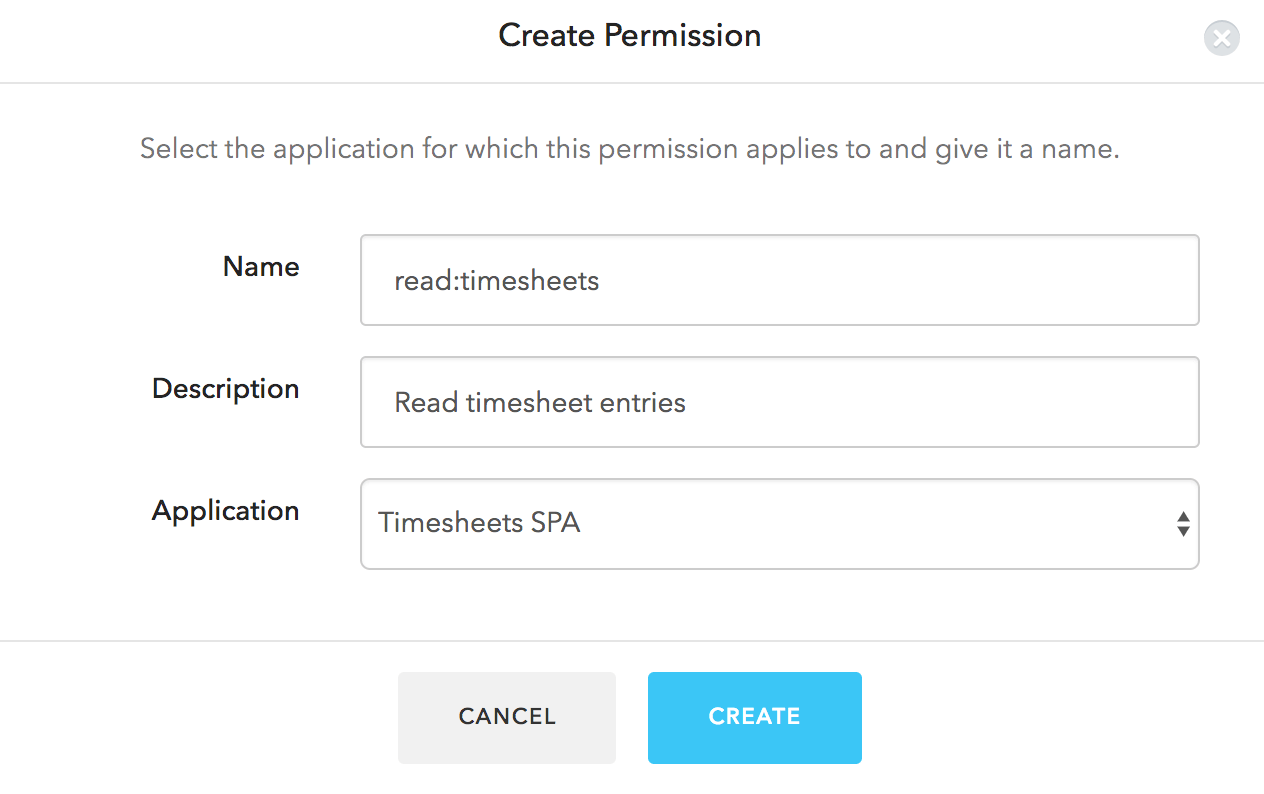 Proceed to create the permissions for all the remaining scopes:
### Define Roles
Next let's configure the two Roles: employee and manager.
Head over to the **Roles** tab, click the **Create Role** button, and select the **Timesheets SPA** application.
Set the **Name** and **Description** to `Employee`, and select the `delete:timesheets`, `create:timesheets` and `read:timesheets` permissions. Click on **Save**.
Next, follow the same process to create a `Manager` role, and ensure that you have selected all the permissions.
### Assign Users to Roles
You need to assign all users to either the `Manager` or the `Employee` role.
You can do this by going to the **Users** tab in the Authorization Extension and selecting a user.
On the user information screen, go to the **Roles** tab. Click **Add Role to User**, and select the appropriate role.
### Configuring the Authorization Extension
You will also need to ensure that the Rule for the Authorization Extension is published.
To do so, click on your user avatar in the top right of the Authorization Extension, and select **Configuration**.
Make sure that **Permissions** are enabled and then click **Publish Rule**.
### Create a Rule to validate token scopes
The final step in this process is to create a Rule to check if the scopes contained in an Access Token are valid based on the permissions assigned to the user. Any scopes which are not valid for a user should be removed from the Access Token.
In your Auth0 Dashboard, go to the **Rules** tab. You should see the Rule created by the Authorization Extension. Click on the **Create Rule** button and select the **Empty Rule** template. You can give the Rule a name, such as **Access Token Scopes**, and then specify the following code for the Rule:
```javascript lines theme={null}
function (user, context, callback) {
var permissions = user.permissions || [];
var requestedScopes = context.request.body.scope || context.request.query.scope;
var filteredScopes = requestedScopes.split(' ').filter( function(x) {
return x.indexOf(':') < 0;
});
var allScopes = filteredScopes.concat(permissions);
context.accessToken.scope = allScopes.join(' ');
callback(null, user, context);
}
```
The code above will ensure that all Access Tokens will only contain the properly-formatted scopes (e.g., `action:area` or `delete:timesheets`) which are valid according to a user's permissions. Once you are done you can click on the **Save** button.
Rules execute in the order they are displayed on the Rules page, so ensure that the new rule you created is positioned below the rule for the Authorization Extension, so it executes after the Authorization Extension rule.
Proceed to create the permissions for all the remaining scopes:
### Define Roles
Next let's configure the two Roles: employee and manager.
Head over to the **Roles** tab, click the **Create Role** button, and select the **Timesheets SPA** application.
Set the **Name** and **Description** to `Employee`, and select the `delete:timesheets`, `create:timesheets` and `read:timesheets` permissions. Click on **Save**.
Next, follow the same process to create a `Manager` role, and ensure that you have selected all the permissions.
### Assign Users to Roles
You need to assign all users to either the `Manager` or the `Employee` role.
You can do this by going to the **Users** tab in the Authorization Extension and selecting a user.
On the user information screen, go to the **Roles** tab. Click **Add Role to User**, and select the appropriate role.
### Configuring the Authorization Extension
You will also need to ensure that the Rule for the Authorization Extension is published.
To do so, click on your user avatar in the top right of the Authorization Extension, and select **Configuration**.
Make sure that **Permissions** are enabled and then click **Publish Rule**.
### Create a Rule to validate token scopes
The final step in this process is to create a Rule to check if the scopes contained in an Access Token are valid based on the permissions assigned to the user. Any scopes which are not valid for a user should be removed from the Access Token.
In your Auth0 Dashboard, go to the **Rules** tab. You should see the Rule created by the Authorization Extension. Click on the **Create Rule** button and select the **Empty Rule** template. You can give the Rule a name, such as **Access Token Scopes**, and then specify the following code for the Rule:
```javascript lines theme={null}
function (user, context, callback) {
var permissions = user.permissions || [];
var requestedScopes = context.request.body.scope || context.request.query.scope;
var filteredScopes = requestedScopes.split(' ').filter( function(x) {
return x.indexOf(':') < 0;
});
var allScopes = filteredScopes.concat(permissions);
context.accessToken.scope = allScopes.join(' ');
callback(null, user, context);
}
```
The code above will ensure that all Access Tokens will only contain the properly-formatted scopes (e.g., `action:area` or `delete:timesheets`) which are valid according to a user's permissions. Once you are done you can click on the **Save** button.
Rules execute in the order they are displayed on the Rules page, so ensure that the new rule you created is positioned below the rule for the Authorization Extension, so it executes after the Authorization Extension rule.