> ## Documentation Index
> Fetch the complete documentation index at: https://docs-dev-actions-triggers-prototype.mintlify.site/llms.txt
> Use this file to discover all available pages before exploring further.
# Password Strength in Auth0 Database Connections
> Auth0's Password Strength feature allows you to customize the level of enforced complexity for passwords entered during user sign-up. Auth0 offers 5 levels of security to match OWASP password recommendations.
La fonction **Password Strength (Fiabilité du mot de passe)** n’est disponible que pour les connexions aux bases de données. La complexité des mots de passe dans les connexions Social et Enterprise est imposée par chaque fournisseur.
An important concern when using passwords for authentication is password strength. A strong password policy will make it difficult, if not improbable, for someone to guess a password through either manual or automated means.
The following characteristics define a strong password:
* **Password Length**: Longer passwords include a greater combination of characters making it more difficult to guess. Passwords shorter than 10 characters are considered weak.
* **Password Complexity**: Passwords containing a combination of upper-case and lower-case letters, numbers, and special characters are recommended.
* **Passphrases**: Sentences or combinations of words can be much longer than typical passwords yet much easier to remember.
## Password policies
Auth0's Password Strength feature allows you to customize the level of enforced complexity for passwords entered during user sign-up. Auth0 offers 5 levels of security to match [OWASP password recommendations](https://github.com/OWASP/CheatSheetSeries/blob/master/cheatsheets/Authentication_Cheat_Sheet.md).
At each level, new passwords must meet the following criteria:
* **None** (default): at least 1 character of any type.
* **Low**: at least 6 characters.
* **Fair**: at least 8 characters including a lower-case letter, an upper-case letter, and a number.
* **Good**: at least 8 characters including at least 3 of the following 4 types of characters: a lower-case letter, an upper-case letter, a number, a special character (such as `!@#$%^&*`).
* **Excellent**: at least 10 characters including at least 3 of the following 4 types of characters: a lower-case letter, an upper-case letter, a number, a special character (such as `!@#$%^&*`). Not more than 2 identical characters in a row (for example, `111` is not allowed).
La politique de mot de passe pour les administrateurs du Dashboard Auth0 reflète les critères définis pour le niveau **Fair**.
## Minimum password length
You can set a minimum length requirement for passwords that is independent of the policy strength requirements described in the [Password Policies section](#password-policies).
The minimum password length you can set is 1 byte, while the maximum is 72 bytes.
La limite maximale peut varier en fonction de l’algorithme de hachage de mot de passe que vous utilisez.
If you opt for a higher-level password policy, but you do not specify a minimum length value, the minimum password length for the policy level will automatically be used:
| Niveau de la politique relative aux mots de passe | Longueur minimale du mot de passe |
| ------------------------------------------------- | --------------------------------- |
| Aucun | 1 |
| Bas | 6 |
| Juste | 8 |
| Bon | 8 |
| Excellent | 10 |
If you provide a minimum password length, this value supersedes that indicated by the password policy.
### Minimum password length when using Universal Login Pages
If you are using either the [Universal Login Page](/docs/fr-ca/authenticate/login/auth0-universal-login) or the [Universal Login Password Reset Page](/docs/fr-ca/customize/login-pages/classic-login/customize-password-reset-page), and you want to set the minimum password length value, you will need to complete a few additional configuration steps using the [Auth0 Dashboard](https://manage.auth0.com/#).
#### Set minimum password length when using Hosted Password Reset Pages
If you're using a [customized Password Reset Page](/docs/fr-ca/customize/login-pages/classic-login/customize-password-reset-page), and you want to set the password length parameter, you must:
1. Update your templates to include library version 1.5.1 or later
2. Add `password_complexity_options` to leverage the new parameter
If you do not update the Password Reset Page, Auth0 ignores any attempt to set the minimum password length.
##### Step 1: Update the change password library version
To use the new minimum password length feature, you should update the change password library used to version 1.5.1 (or later):
```lines theme={null}
```
##### Step 2: Add password\_complexity\_options to leverage the new parameter
You'll need to add `password_complexity_options` to leverage the new parameter. Add this option to the page's script as follows:
```lines theme={null}
```
Scroll to the bottom, and select **Save**.
#### Set minimum password length when using Universal Login Pages
If you're using a customized [Login Page](/docs/fr-ca/authenticate/login/auth0-universal-login) and you want to set the password length parameter, you must [update the page to use Lock version 11.9 or later](/docs/fr-ca/authenticate/login/auth0-universal-login/universal-login-vs-classic-login/classic-experience).
```lines theme={null}
```
Scroll to the bottom, and select **Save**.
## Change your policy
To change the password strength policy, navigate to [Auth0 Dashboard > Authentication > Database](https://manage.auth0.com/#/connections/database). Choose the database connection you wish to update and select the Authentication Methods tab. In the Password section, select Configure, then locate the **Password Strength** section:
If you use Management API to set or update a user's password via the [Update a User endpoint](https://auth0.com/docs/api/management/v2#!/Users/patch_users_by_id), the strength policy you set in Auth0 Dashboard applies.
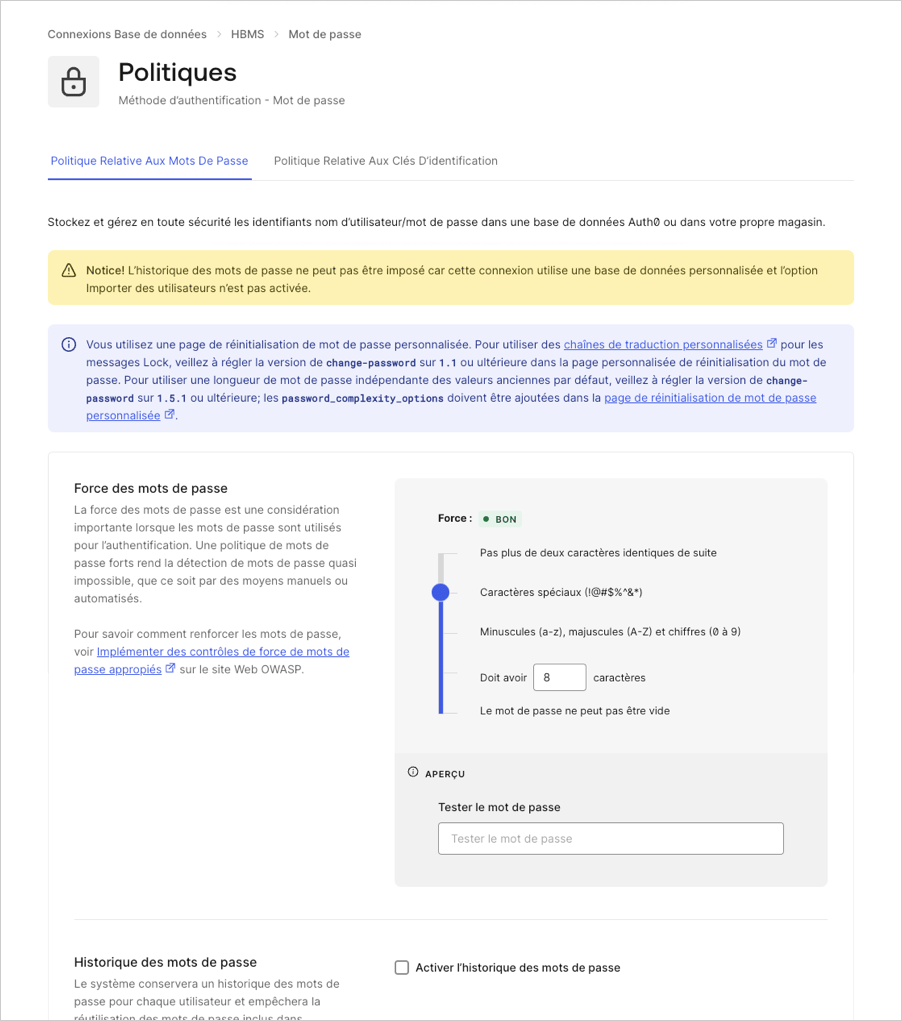 The new policy will be enforced on all subsequent user sign-ups and password changes. If the user enters a password that does not match the required criteria, the password will be rejected by Auth0 and the user will be asked to create one that complies with these requirements.
Les mots de passe existants qui ont été créés avant le changement de politique continueront à être validés.
### Lock
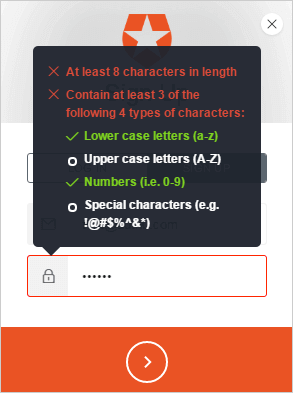
After password policies have been enabled, users will be notified on signup and reset password Lock modes if their password does not meet the required criteria.
This is how Lock will appear on the desktop:
The new policy will be enforced on all subsequent user sign-ups and password changes. If the user enters a password that does not match the required criteria, the password will be rejected by Auth0 and the user will be asked to create one that complies with these requirements.
Les mots de passe existants qui ont été créés avant le changement de politique continueront à être validés.
### Lock
After password policies have been enabled, users will be notified on signup and reset password Lock modes if their password does not meet the required criteria.
This is how Lock will appear on the desktop:
 and on mobile:
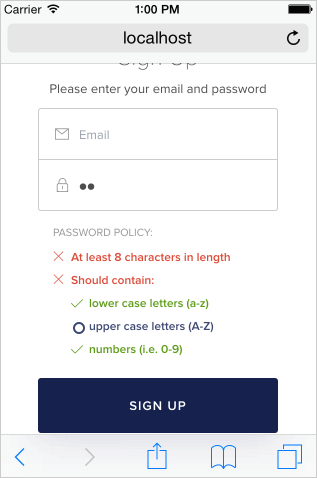 Si Auth0 rejette un mot de passe, la notification s’affiche en anglais. Si vous souhaitez afficher les notifications dans une autre langue, vous devrez le faire via une traduction côté client.
## Custom signup errors
Sign-up errors will return a `400` HTTP status code. The JSON response will contain `code: invalid_password` when the password does not meet the selected password policy criteria.
The response will also contain additional information that can be used to guide the user to what is incorrect in the selected password:
* A `message` is ready to be formatted using the `printf` function (or Node.js `util.format`).
* `format` is an array with values to be used in the `message`. (`message` is separate from the `format` to allow easier i18n of error messages in custom UIs.)
* `verified` can be either `true` or `false`. Returns `false` if the rule has been violated.
Certaines règles sont composites. Une règle peut contenir un champ `items` qui spécifie quelles sous-règles ont échoué. Chaque sous-règle aura un `message` et peut avoir un `format`, si nécessaire.
### Examples
This is a sample `description` error report from a `good` policy with `hello` as the password:
```json lines theme={null}
{
"rules":[
{
"message":"At least %d characters in length",
"format":[8],
"verified":false
},
{
"message":"Contain at least %d of the following %d types of characters:",
"format":[3,4],
"items":[
{
"message":"lower case letters (a-z)",
"verified":true
},
{
"message":"upper case letters (A-Z)",
"verified":false
},
{
"message":"numbers (such as 0-9)",
"verified":false
},
{
"message":"special characters (such as !@#$%^&*)",
"verified":false
}
],
"verified":false
}
],"
verified":false
}
```
This is a sample `description` error report from a `good` policy with `hello1234` as the password:
```json lines theme={null}
{
"rules":[
{"message":"At least %d characters in length","format":[8],"verified":true},
{"message":"Contain at least %d of the following %d types of characters:","format":[3,4],
"items":[
{"message":"lower case letters (a-z)","verified":true},
{"message":"upper case letters (A-Z)","verified":false},
{"message":"numbers (such as 0-9)","verified":true},
{"message":"special characters (such as !@#$%^&*)","verified":false}
],"verified":false}
],"
verified":false
}
```
## Password options
In addition to the Password Strength feature explained here, the Password Policy settings for a database connection also include various Password Options that can further enhance your connection's password policy and ensure that your users have more secure passwords. To learn more, read [Password Options](/docs/fr-ca/authenticate/database-connections/password-options).
Si Auth0 rejette un mot de passe, la notification s’affiche en anglais. Si vous souhaitez afficher les notifications dans une autre langue, vous devrez le faire via une traduction côté client.
## Custom signup errors
Sign-up errors will return a `400` HTTP status code. The JSON response will contain `code: invalid_password` when the password does not meet the selected password policy criteria.
The response will also contain additional information that can be used to guide the user to what is incorrect in the selected password:
* A `message` is ready to be formatted using the `printf` function (or Node.js `util.format`).
* `format` is an array with values to be used in the `message`. (`message` is separate from the `format` to allow easier i18n of error messages in custom UIs.)
* `verified` can be either `true` or `false`. Returns `false` if the rule has been violated.
Certaines règles sont composites. Une règle peut contenir un champ `items` qui spécifie quelles sous-règles ont échoué. Chaque sous-règle aura un `message` et peut avoir un `format`, si nécessaire.
### Examples
This is a sample `description` error report from a `good` policy with `hello` as the password:
```json lines theme={null}
{
"rules":[
{
"message":"At least %d characters in length",
"format":[8],
"verified":false
},
{
"message":"Contain at least %d of the following %d types of characters:",
"format":[3,4],
"items":[
{
"message":"lower case letters (a-z)",
"verified":true
},
{
"message":"upper case letters (A-Z)",
"verified":false
},
{
"message":"numbers (such as 0-9)",
"verified":false
},
{
"message":"special characters (such as !@#$%^&*)",
"verified":false
}
],
"verified":false
}
],"
verified":false
}
```
This is a sample `description` error report from a `good` policy with `hello1234` as the password:
```json lines theme={null}
{
"rules":[
{"message":"At least %d characters in length","format":[8],"verified":true},
{"message":"Contain at least %d of the following %d types of characters:","format":[3,4],
"items":[
{"message":"lower case letters (a-z)","verified":true},
{"message":"upper case letters (A-Z)","verified":false},
{"message":"numbers (such as 0-9)","verified":true},
{"message":"special characters (such as !@#$%^&*)","verified":false}
],"verified":false}
],"
verified":false
}
```
## Password options
In addition to the Password Strength feature explained here, the Password Policy settings for a database connection also include various Password Options that can further enhance your connection's password policy and ensure that your users have more secure passwords. To learn more, read [Password Options](/docs/fr-ca/authenticate/database-connections/password-options).